HiveGenie Mobile App
A Quick Start
HiveGenie Mobile App
Quick Start
Download the app for Android or iOS and login.
Hive Locations
You can see your devices by locations or hives. For example, you can create two locations; florida and california to group your hives. To manage locations, go to settings > locations. By default you see your hives with no location defined (unassigned).
I. Tap the card to see the hives for that location or click on the Hives tab to see them all together.

Hives
Hives shows a high level view of the hives. You can filter by health status (excellent, normal, bad or disconnected) and sort them by name, weight, temperature or update time or status.
II. Tap the card to drill down onto the hive details.

Hive Details
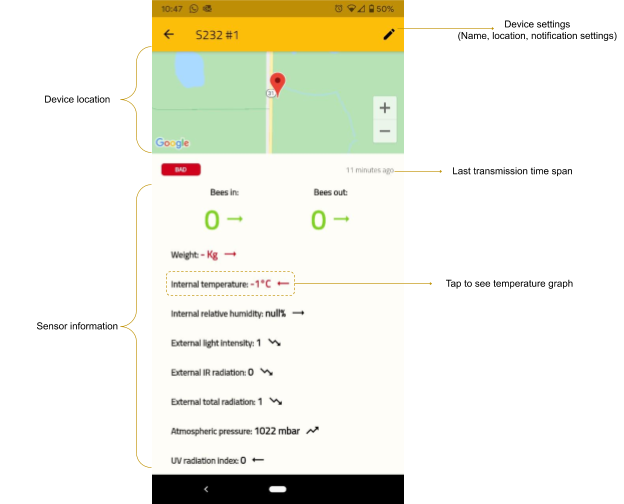
Shows hive sensor last transmission data. You can turn on or off notifications for this device here, move to another location or change the name. Sensor information shows the latest value readings followed by a trend icon.
III. Tap any sensor information to see the graph.
Hive Graphs
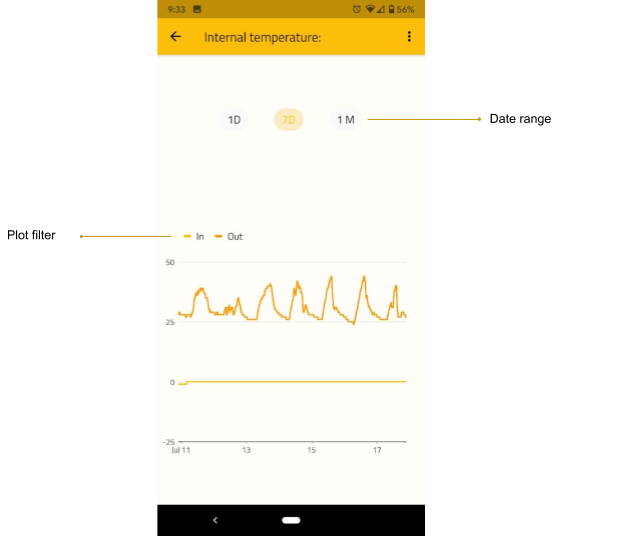
You can see here the time series data for the selected measure from the hive details. Here you can see the last day, week or month data and filter the internal or external sensors from the plot filter by tapping on the legend.